
Installing Python used to mean visiting a website, downloading the correct installer, checking the right boxes, and making sure Python was added to PATH. Today, it is much easier.
In many cases, you can simply open your terminal, type a single command, and Python is installed. That is now true across Windows, Linux, and macOS thanks to modern package managers and Python tools.
For Windows users, there are now several easy ways to get started. You can use the official Python Install Manager, WinGet, uv, Conda, or the traditional Python.org installer.
In this guide, I will show you five easy ways to install Python on Windows, explain when to use each option, and help you choose the best one for your workflow.
Contents
# 1. Installing Python Using the Python Install Manager
One of the easiest ways to install Python on Windows is through the Microsoft Store. Instead of manually downloading an installer, you can install the official Python Install Manager and manage Python directly from PowerShell.
Open the Microsoft Store, search for Python Install Manager, and click Get.
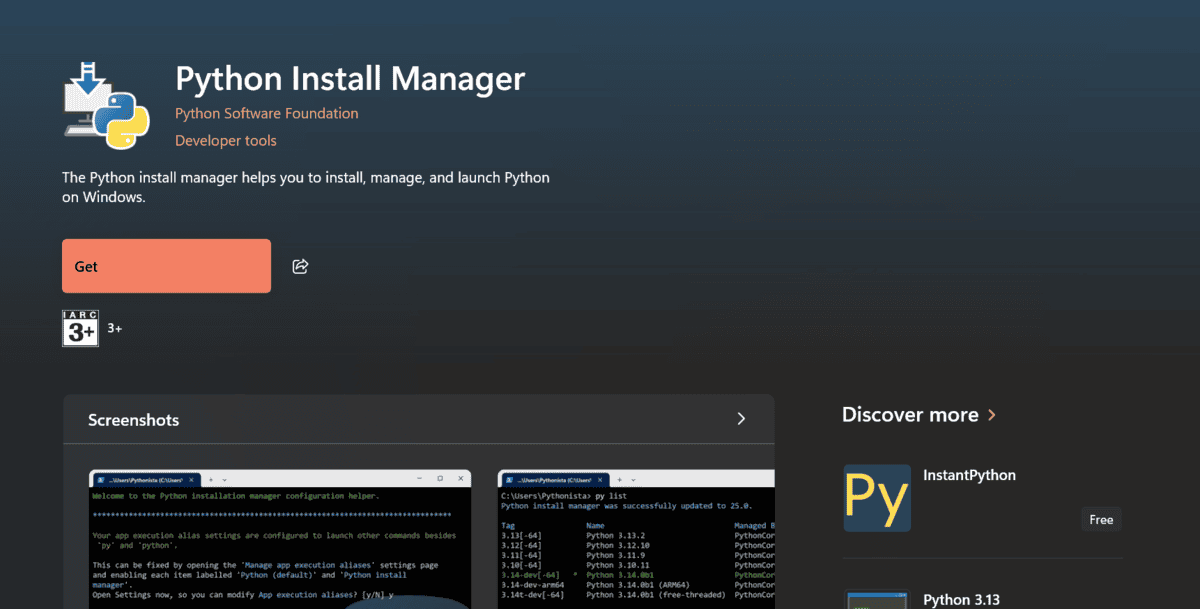
Once installed, open PowerShell and run:
That’s it. If you do not already have a Python runtime installed, the Python Install Manager will automatically install the latest stable version and launch Python.
You can check the installed version using:
To explicitly install a Python runtime, use:
You can also install a specific Python version. For example:
The py command is particularly useful when you want to install or manage multiple Python versions.
For most Windows users, this is the best place to start. You install the Python Install Manager once, and it handles installing and managing Python runtimes for you.
# 2. Installing Python Using WinGet
Another easy way to install Python on Windows is using WinGet, the command-line tool for Windows Package Manager. It lets you discover and install applications directly from the terminal without manually downloading installer files.
Open PowerShell or Windows Terminal and run:
winget install Python.Python.3.14
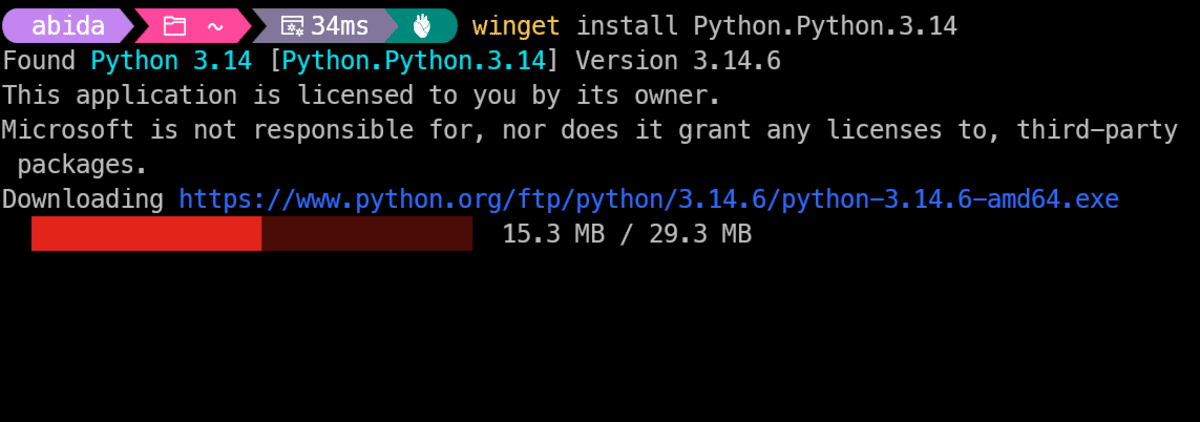
WinGet will find the Python 3.14 package and install it on your system.
Once the installation is complete, open a new terminal window and check the Python version:
That’s it. Python is now ready to use.
WinGet is a great option if you prefer working from the terminal and already use command-line tools to set up your Windows applications. It is quick, simple, and requires only one installation command.
# 3. Installing Python Using uv
Another modern way to install Python is with uv, a fast Python package and project manager from Astral, the team behind Ruff. It can install and manage Python versions, create virtual environments, manage project dependencies, and run Python projects.
Open PowerShell and install uv using the official standalone installer:
powershell -ExecutionPolicy ByPass -c "irm https://astral.sh/uv/install.ps1 | iex"
Now, install the latest Python version:
By default, this command checks for a uv-managed Python installation and installs the latest available version when needed.
To install a specific Python version, run:

This installs the latest supported patch release of Python 3.14 available to your uv version.
That’s it. You now have Python installed and managed by uv.
uv is my preferred option for modern Python development because it goes beyond simply installing Python. You can use the same tool to manage Python versions, environments, dependencies, and projects.
# 4. Installing Python Using Miniconda
If you are working with data science, machine learning, or Jupyter notebooks, Conda is another great option. It manages both packages and isolated environments.
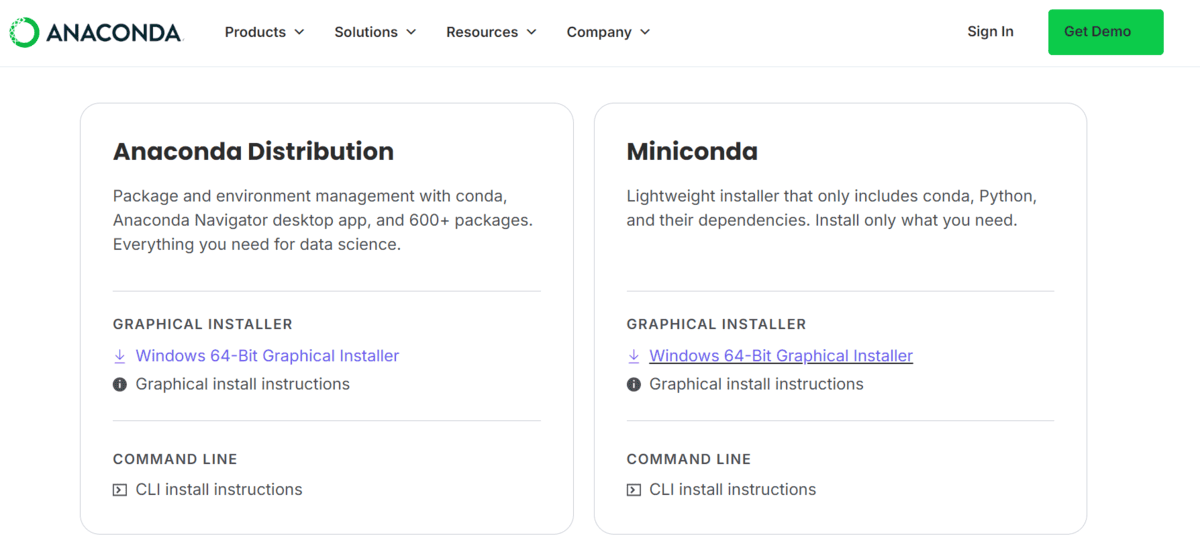
I recommend Miniconda instead of the full Anaconda Distribution. It is lightweight and installs only Conda, Python, and the essential dependencies.
Download and run the Miniconda Windows installer. Once installed, open Anaconda Prompt and check Conda:
Create a new environment with Python:
conda create --name myenv python=3.14
Activate it:
You can now install packages:
conda install pandas jupyter
When you are finished, deactivate the environment:
Use Conda when you need isolated environments and packages with non-Python dependencies, especially for data science and scientific workflows.
# 5. Installing Python Using the Python.org Installer
The classic way to install Python is by downloading the official Windows installer from Python.org. Python 3.14 still provides Windows installers, although this method is now deprecated in favor of the Python Install Manager.
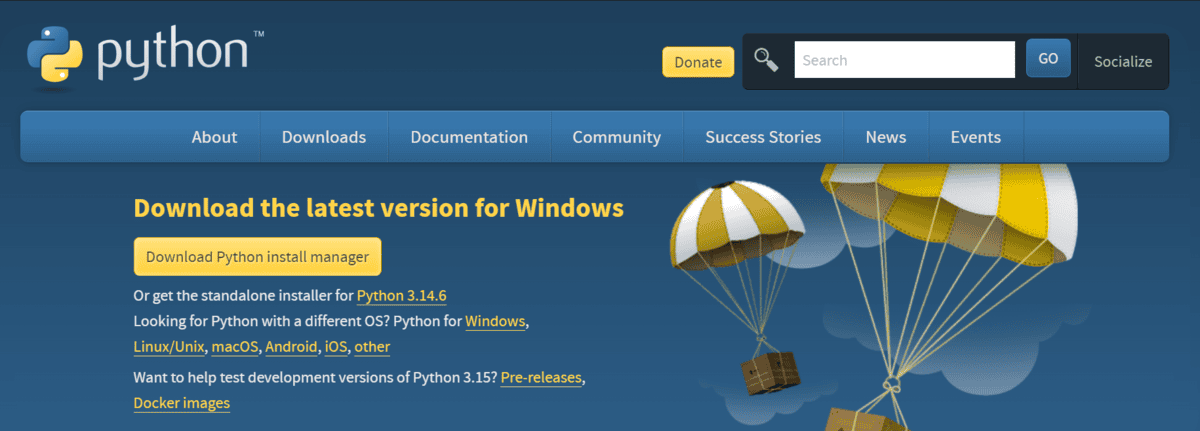
Download the Windows installer (64-bit), run it, select the option to add Python to PATH, and click Install Now.
Open a new PowerShell window and verify the installation:
You can install packages using pip:
py -m pip install requests
This method is still useful if you prefer a familiar graphical installer. However, Python has deprecated the traditional installer and plans to stop releasing it with Python 3.16.
# Choosing the Right Option
For beginners, I would recommend starting with the Python Install Manager from the Microsoft Store. It is simple, official, and you do not have to worry too much about installers or PATH settings.
If you prefer using the terminal, WinGet is probably the easiest option. You run one command and Python is installed.
Personally, I prefer uv for modern Python projects. It can install Python, manage environments, install packages, and run projects using one tool. However, it may feel like too much if you are just learning Python for the first time.
For data science and machine learning, Miniconda is still a good choice, especially when you need separate environments or packages with system dependencies.
The traditional Python.org installer still works, but I would not choose it for a new setup unless you specifically want the familiar graphical installation process.
My advice is simple: if you are a beginner, use Python Install Manager. If you already work with Python projects, try uv.
Abid Ali Awan (@1abidaliawan) is a certified data scientist professional who loves building machine learning models. Currently, he is focusing on content creation and writing technical blogs on machine learning and data science technologies. Abid holds a Master’s degree in technology management and a bachelor’s degree in telecommunication engineering. His vision is to build an AI product using a graph neural network for students struggling with mental illness.