
You’ve probably already seen the term decision model quite often in your feed lately.
The idea of this new breed of AI is simple: you give the model some context and a set of options, and it picks one.
An LLM can do that too, but decision models are trained specifically for this task, and they can do it much faster and cheaper than LLMs.
Ok, but how do you actually put one to work in practice?
In my experience, a hybrid workflow is a good place to start.
Basically, you let the decision model handle the closed-ended selections, where the options are already known, and you let the LLM handle the open-ended parts, where the answer has to be reasoned out or generated from scratch. On top of that, you have Python tying everything together by managing the workflow and executing the operations.
Each component does what it does best.
That’s what we’ll build in this post.
Specifically, we’ll create a browser automation workflow. After receiving a travel request in natural language, the workflow will navigate a hotel-search website, select a suitable hotel, and prepare an inquiry.
We’ll see concretely how to make that happen by combining a decision model, an LLM, and Python into one workflow, and see whether using a decision model actually makes our example faster than using an LLM for everything. (We’ll measure it!)
···
Contents
1. The Hybrid Workflow We Want to Build
1.1 What does browser automation involve?
Browser automation is one of the most practical things you can do with LLMs: an LLM that can operate a browser can reach almost anything you can.
You describe what you want in natural language, like “find me a hotel in Lisbon next weekend under €150 a night” or “download last month’s invoices from the supplier portal.” The LLM system then interacts with the website, like reading the page, clicking buttons, choosing dropdown options, and filling out forms, to get it done.
The LLM system needs to perform diverse activities. But if we look at them more closely, we can broadly organize them into three categories:
-
Closed-ended selection. Which button to click? Which item to select? The options are already there. The system needs to pick the appropriate one. This can also apply to choosing the next workflow action, when the available actions are known in advance.
-
Open-ended generation. What to write in a message? How to explain a request? Here, the system needs to work out and generate an answer, which could be a message, an explanation, a plan, or code.
-
Orchestration. To support the above activities, we need a mechanism to gather information from the website, prepare it for the models, take the models’ responses, and actually perform the browser operations, with external tools.
In fact, if you’ve built LLM applications before, you’ve probably dealt with all three already.
1.2 Who does what in the hybrid workflow?
Now, with these three categories clearly laid out, the division of labor follows naturally.
The decision model can handle closed-ended selection, the LLM can handle open-ended generation, and Python handles orchestration.
Note that closed-ended selection happens at two levels here: within an interaction, and across interactions.
Within an interaction, the decision model simply picks an option, like a date in a calendar. Across interactions, it instead picks what to do next, such as whether to open the calendar, or submit the form. Essentially, both are the same kind of problem: picking from a known set of options already on the page. So a decision model can naturally handle both. However, this second level is what lets it drive the workflow.
Now, we can put together a repeating cycle:
-
Read the page and prepare the choices. Python gathers the current browser information and turns the available controls into operations the decision model can choose from.
-
Select the next operation. The decision model chooses what to do next, such as clicking a button, selecting an option, or filling a field. It can also choose to stop.
-
Call the LLM if needed. Python checks the selected operation. If it requires text, it calls the LLM to supply that text.
-
Carry out the operation. Python uses the browser tools to perform the selected operation. This includes entering any text supplied by the LLM.
-
Read the updated page and repeat. The interaction changes the browser state; Python then fetches the new information and prepares new choices for the next cycle.
Next, we put this workflow to work on a small hotel-search website.
···
2. Case Study: Find a Hotel and Prepare an Inquiry
2.1 What are we asking the workflow to do?
In this case study, we work with the following travel request:
Can you find us a hotel in Lisbon for Nov 12–14, 2026? Two adults, max €150 a night, refundable, breakfast included. If there’s a match, save an inquiry under Alex Morgan ([email protected]). Keep it short and polite: ask if we can check in late, around 23:30, and if they have a quiet room. If nothing works, just leave it.
For this case study, I created a small local hotel-search website with fictional hotels in Lisbon and Porto.
The website has the usual controls like a destination dropdown, check-in/out calendars, and a guest selector. The results show hotel prices, cancellation policies, as well as breakfast availability. One can also use the filters to narrow the selection.
One thing to keep in mind: I designed hotels to meet different combinations of requirements. For example, some are cheaper but non-refundable; others include breakfast but exceed the budget. This way, the workflow needs to consider the whole request when choosing a hotel.
After selecting a hotel, the workflow should open an inquiry form to enter the contact details and message. Finally, it should open the review page, check the confirmation box, and save the inquiry locally.
2.2 How do we connect the models to the browser?
Remember the cycle we outlined in Section 1.2? Let’s go through it again, this time looking at how each step actually works.
1. Read the page and prepare the choices.
To read the page, we use Playwright MCP, a Model Context Protocol server from Microsoft that wraps the Playwright browser automation library.
With Playwright MCP, we can control a browser through a standard set of tools. Note that we don’t work with page screenshots. Instead, one of these tools captures the current state of the page as a snapshot, which is a structured text description of its content and controls. Each control gets a short ID, which the other tools use to know which element to click or type into.
From the snapshot, Python turns the available controls into a list of concrete operations. To show an example:
Notice that this list covers both levels of selection from earlier. A1 and A2 choose a value within one interaction, while A3 chooses which interaction comes next. But to the decision model, they’re all just options.
Behind each identifier, Python stores the browser tool and arguments needed to carry it out.
2. Select the next operation.
This is where the decision model comes into play. It receives the task and page information as context, as well as the list of options, and then it returns one identifier, say A3.
3. Call the LLM if needed.
Sometimes the decision model selects an operation that requires text, like “Fill Message to the hotel from the task.” The decision model only decides that this field should be filled now; it doesn’t write the content. So Python passes the task to the LLM, which writes the text.
4. Carry out the operation.
Python looks up the tool and arguments behind the selected identifier and calls the corresponding Playwright MCP tool. Using the previous A3 as an example, this means clicking the check-in button.
5. Read the updated page and repeat.
Once Python executes the operation, the page state changes. Python takes a new snapshot and builds a new list. This cycle continues until the decision model selects a stopping option.
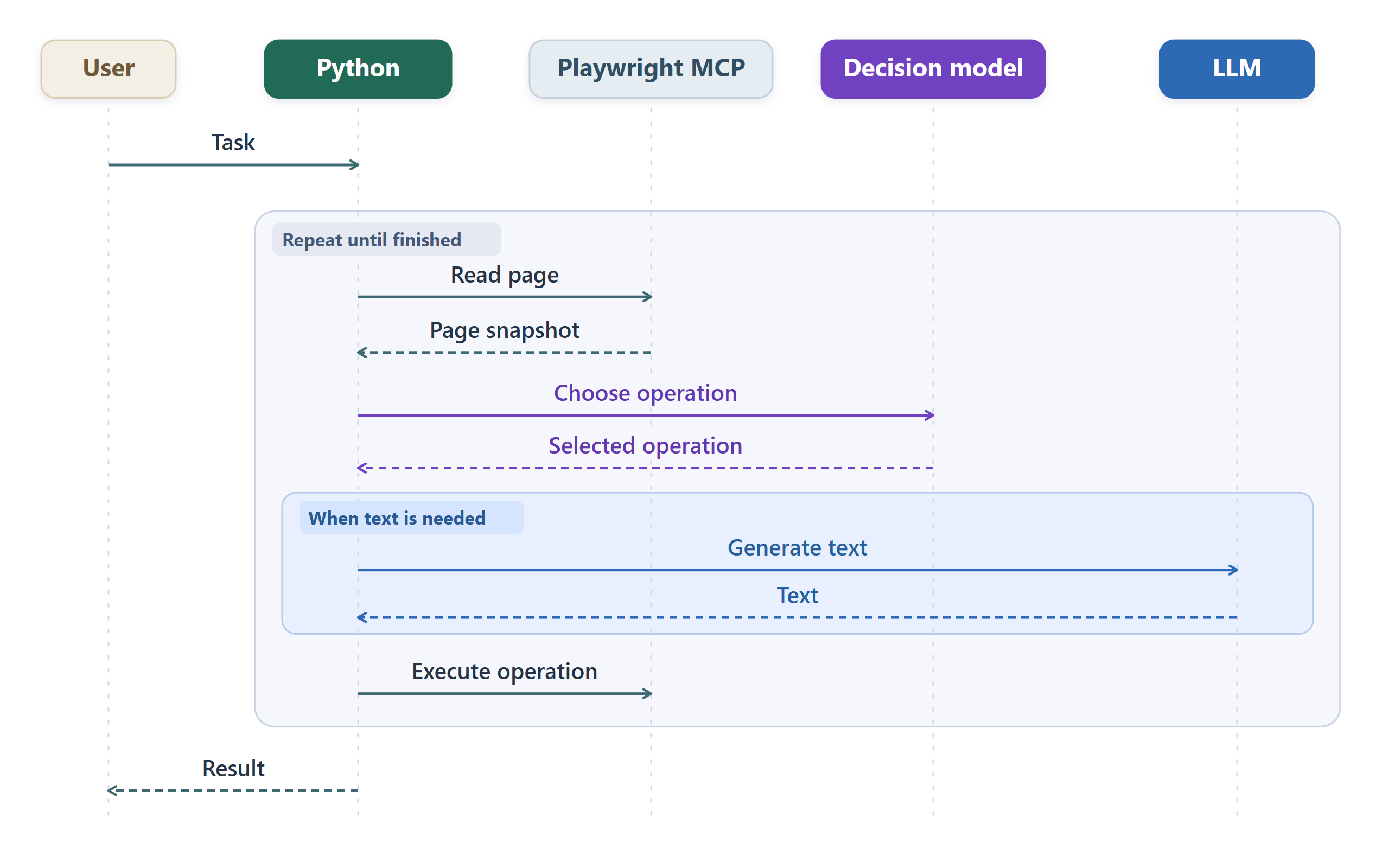
Now, let’s see the code that connects these pieces.
···
3. Build the Hybrid Workflow
For our current case study, we’ll mainly use Decision-1 from Microsoft as the decision model and GPT-6-Luna as the LLM, both of which are deployed through Azure. We’ll also briefly cover other alternatives, like Jev and OpenAI’s Decisions API. As mentioned earlier, we use Playwright MCP for browser tools.
You can find the complete implementation in the companion notebook here.
3.1 Overview
We put the repeating cycle from Section 2 into a function called run_browser_task(). This function connects the models to the browser and keeps the interactions moving until the task finishes.
The core of the function looks like this:
The logic follows the intended steps closely:
-
observe()reads the page and prepares the choices, -
select()calls the model to choose an operation, -
write_field()calls the LLM to supply text, -
Python executes the operation through
browser.call_tool()and repeats the cycle
Below, we unpack these pieces one by one.
3.2 Turn browser controls into choices
First, we need to read the current page and prepare the operations. We wrap this in observe():
In the code snippet above, the browser argument is our connected MCP client. Its job is to communicate with Playwright MCP, which is a server that exposes Playwright’s browser capabilities as tools Python can call.
Getting Playwright MCP running
To run the notebook, you need to have Python 3.11+, Node.js 20+, and Google Chrome installed. Node.js runs the Playwright MCP server, and Python connects to it through the MCP client.
Install the Python MCP client and the Playwright MCP server:
python -m pip install mcp==2.3.0
npm install @playwright/[email protected]
You don’t need to launch the MCP server separately. When we call
run_browser_task(), it starts the server and opens the client connection. That connection is thebrowserobject passed toobserve().
The call browser.call_tool("browser_snapshot", {}) asks the server to read the current page. The first argument is the tool name, the second argument supplies arguments for the tool—none are needed here.
To parse the response, we prepared a small tool_text() helper that extracts the text describing the page and checks for reported tool errors. The regular expression then retrieves the snapshot from its YAML block.
Next, we pass the snapshot to available_actions(). This is the helper function we defined to convert the observed controls into operations:
Here, buttons become clicks, dropdown options become selections, and text fields become fill operations marked with a field label; the main loop calls the LLM when one is selected. We also add done and blocked as stopping choices.
Each choice pairs a description for the decision model with the tool and arguments Python needs to execute it. For example, an entry in its returned dictionary looks like this:
A3 is the operation’s identifier. The decision model sees its description, “Click Check-in: Choose date,” and can select it by returning A3. Python then retrieves the execution details: call browser_click with {"target": "e12"}. Here, e12 is an example reference supplied by the browser snapshot.
Since this operation needs no text, the field is None. For a text-field operation, it contains the field label.
Ok, that’s it for the first step. With the two things returned byobserve(), i.e., the page snapshot and the operation dictionary, we can next task the decision model to select an operation.
3.3 Select an operation with a decision model
We wrap the API call in select():
In the code snippet above, http is the HTTPX client opened by run_browser_task(), which sends our model requests. state contains the travel request, current page snapshot, and recent actions. choices contains only the operation identifiers and descriptions.
In the request body, the decision model can see the context via state. We name our question action, set its type to choice, and provide the alternatives through criteria. This is the request format used by Microsoft-Decision-1’s decision endpoint on Azure.
We also need to tell the model how to make that selection. That is the purpose of INSTRUCTIONS:
Finally, request_json() is our notebook helper that sends the JSON request and returns the parsed response together with request time.
The response uses the same question name, action. Its choice field contains the selected identifier—for example, A3. Python uses that identifier to retrieve the corresponding operation from actions.
We now have a selected operation.
3.4 Other ways to call a decision model
Azure isn’t the only option. For example, we can access other decision models (e.g., gpt-6-luna-decisions) via OpenRouter:
To try Jev through this endpoint, change the model identifier to typesafe/jev-1.14.
If you want to access OpenAI’s Decisions API directly, the request structure is a bit different: context goes into input, questions form a list, and alternatives use value and description. Its answers also arrive as a list.
3.5 Supply text with the LLM
When the decision model selects “Fill Message”, we need the LLM to supply the text for that message field.
For this part, we use GPT-6-Luna via the Responses API. We start by configuring the Python client:
Then, we implement write_field():
For the LLM call, we supply the original task, current page, and selected field label. That should be enough for the LLM to produce the desired answer.
With that, we now have the pieces needed to read the page, select an operation, supply text when necessary, and perform the interaction.
We are now ready to run the workflow and inspect the result.
···
4. Run the Workflow and Inspect the Results
4.1 Run the hybrid workflow
Here is the complete selection trace I got:
The whole run takes 41s. We can see that the progression made by the decision model is sensible. Steps 13–15 each trigger an additional Luna call to supply the selected field’s value.
In total, the workflow made 19 selection calls. The saved inquiry shows:
Riverlight Hotel cost €145 per night, was refundable, and included breakfast, satisfying the hotel requirements. The inquiry contained the requested dates, November 12–14, 2026, two adults, and Alex Morgan’s name and email.
The message was:
Could you please let me know whether check-in at 23:30 is possible? I would also appreciate a quiet room, if available.
So, our workflow completed the request correctly.
4.2 Compare with pure GPT-6-Luna
If we were building this with a conventional LLM, we’d ask the LLM to do both selecting the next browser operation and supplying text for the fields.
Now that we’ve outsourced those selections to a decision model, do we actually gain anything?
To find out, I replaced the selection function with one that calls GPT-6-Luna through the Responses API. It receives the same task, current page content, available operations, and recent actions. It returns the selected identifier through structured output, so the answer is always one of the available operations. The selection instructions are also the same. Its reasoning effort is set to none, with a 256-token output limit.
So, what are the results?
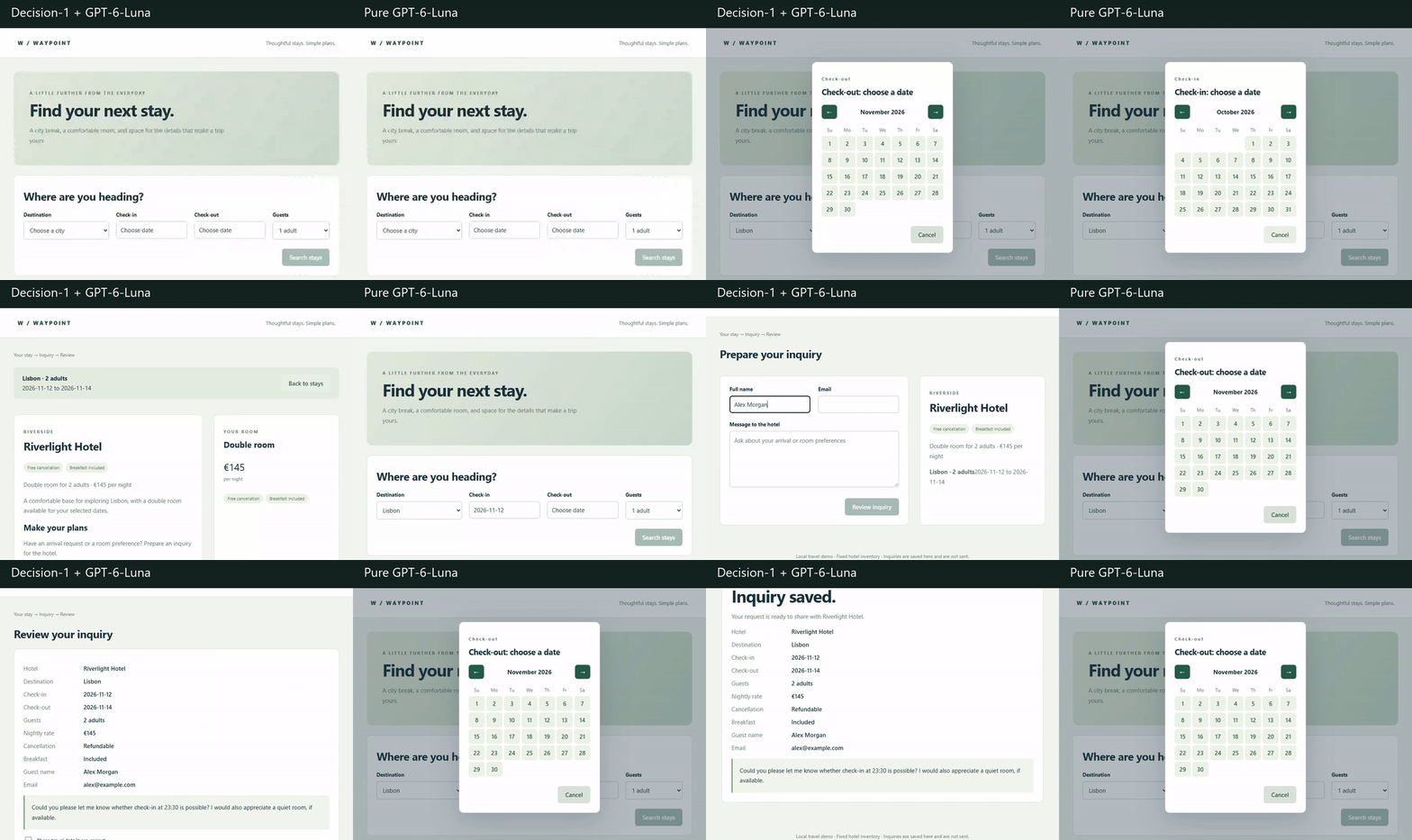
Well, the pure Luna version also completed the task correctly. However, it took 156s, compared with 41s for Decision-1 plus Luna. That’s 3.8 times faster!
I attached a short recording below for both versions, played at normal playback speed. You can see how fast the decision model moves through the search and inquiry steps, while GPT-6-Luna is still entering the travel details:
···
5. Final Thoughts
When building an LLM application, it helps to look at what each model call actually needs to return. Sometimes we need a newly generated answer. Other times, we already know the alternatives and just need the model to pick one.
That second type of work is a good place to try a decision model.
Python prepares the context and choices, and connects the selected option to an operation, while the LLM handles the parts that require open-ended generation. Together, they give us a quite useful pattern for building hybrid workflows.
Although we used browser automation as the case study, you can definitely look for the same pattern in your own applications. If a selection step is handled by your LLM currently, try a decision model in its place, and see what changes.